Topics & statuses
Auto-tag conversations by subject, and label customers with a status badge.
Overview
Two kinds of labels help you organise and report on your inbox:
- Topics tag a conversation by subject automatically, from keywords (e.g. tag anything mentioning "invoice" as Payment).
- Statuses label a customer with a coloured badge (e.g. VIP).
Conversation topics
A topic is a label plus a list of keywords. When a conversation's first inbound message contains any of a topic's keywords, Relay tags the whole conversation with that topic — and the tag shows up in Reports, so you can see how your volume breaks down by subject.
-
Open the topic manager. On the Reports page, click Manage topics.
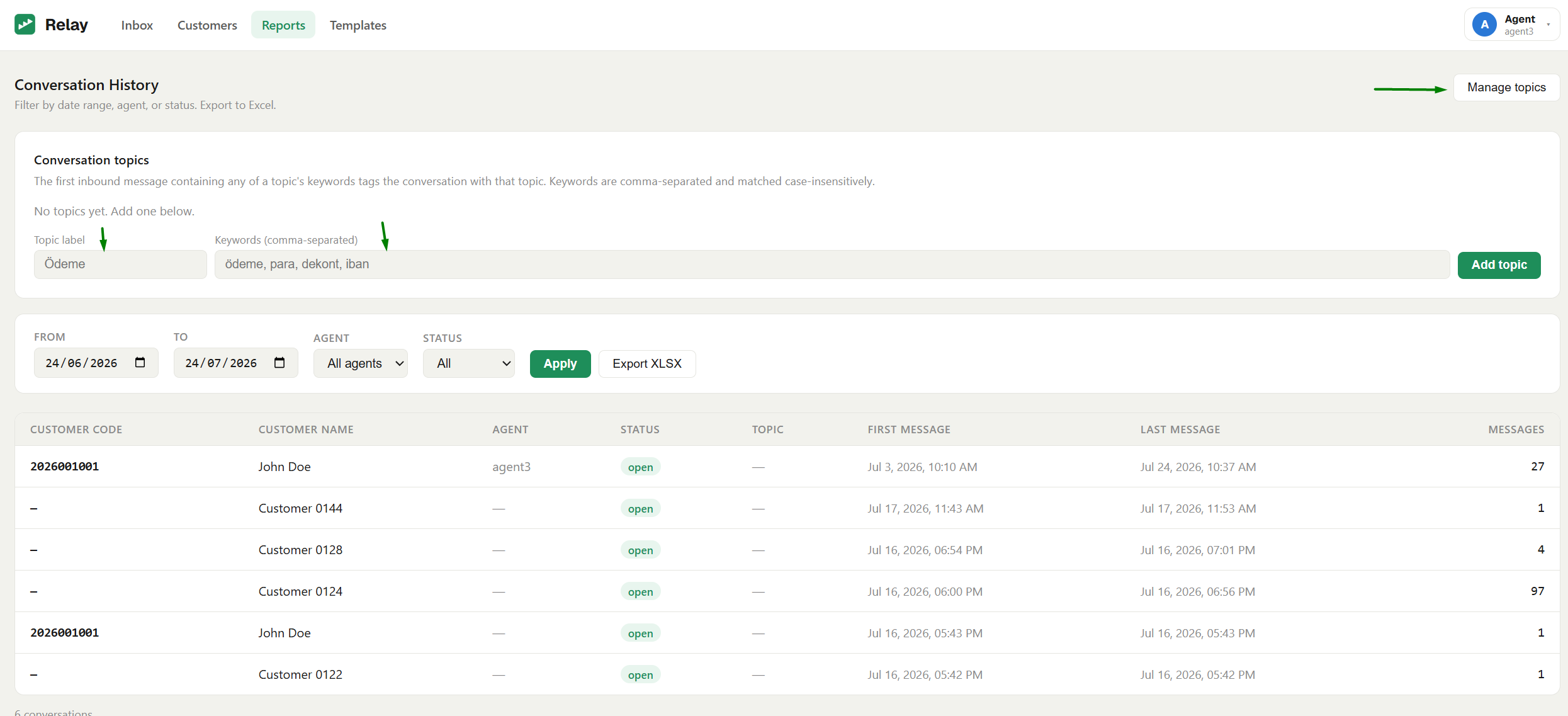
-
Add a topic. Enter a Topic label (e.g.
Payment) and its Keywords, comma-separated (e.g.pay, invoice, payment). Click Add topic. -
That's it — new conversations are tagged automatically as they arrive.
Note: Keywords are matched case-insensitively, and only the first inbound message sets the topic (first match wins). Creating and deleting topics needs the Manage topics permission (the Admin always has it). Deleting a topic just removes the tag from conversations — it doesn't delete anything else.
Customer statuses
A status is a coloured badge on a customer that shows on their conversations — handy for flagging VIPs or account states. Statuses are managed from the Customers page (Manage statuses) and assigned per customer.
Full details, including creating statuses and assigning them, are on the Customer directory page.
Next steps
- Reports — see conversations broken down by topic.
- Customer directory — manage customers and their statuses.