Operations console
Watch every workspace's numbers and inbox health from one screen — and act on any number.
Overview
The Operations console is the Super-admin's cross-workspace control room, in the Admin
panel (/admin). It shows live health for every workspace — which numbers are connected,
where a queue is backing up, who's online — sorted so whatever needs attention comes first.
It deals in counts and connection state only: no customer names or message content appear
here. (To read conversations, use the Admin inbox.)
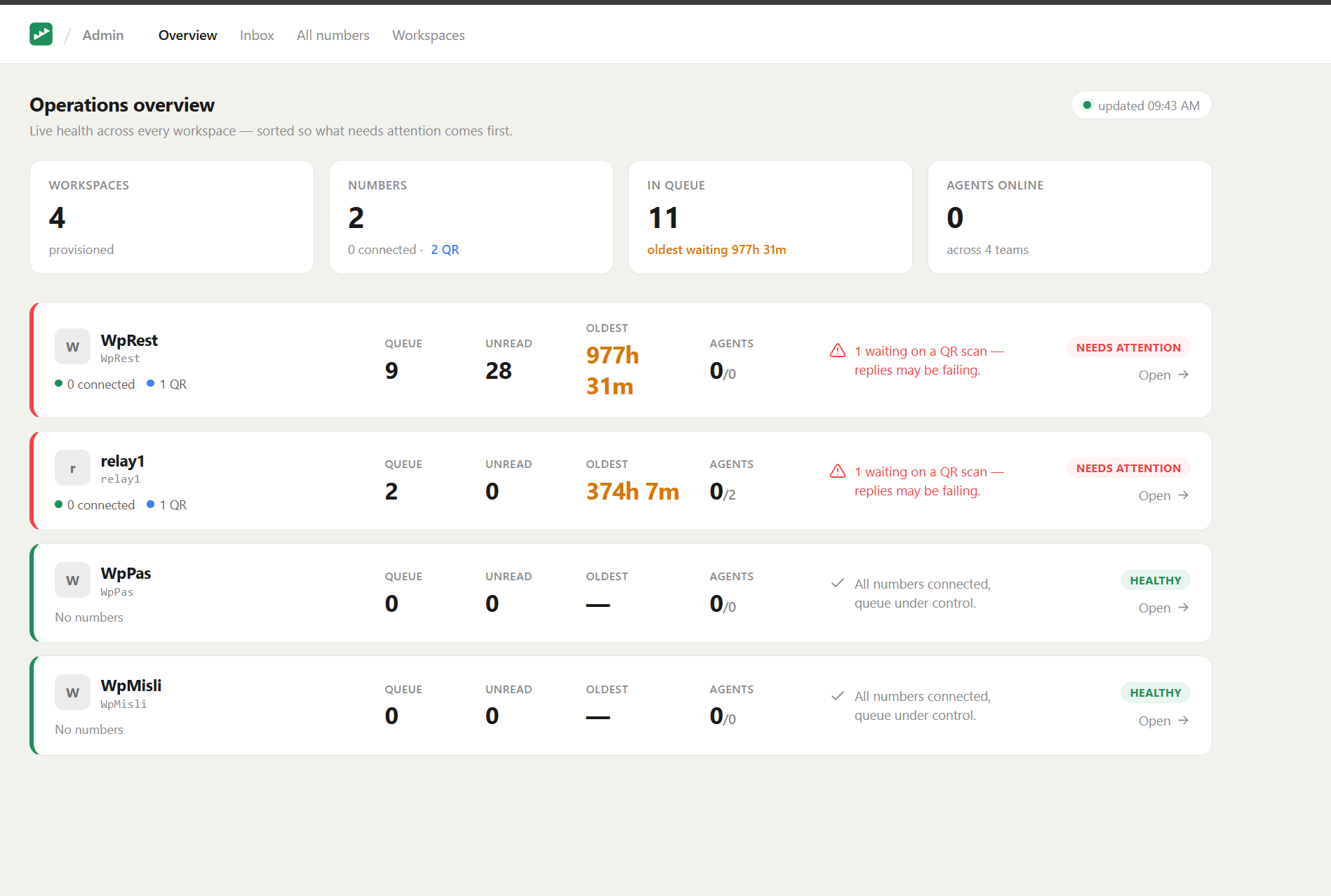
The top bar switches between Overview, Inbox, All numbers, and Workspaces.
Fleet overview
Four figures summarise everything at a glance: Workspaces, Numbers (with connected / down / QR counts), In queue (and how long the oldest has been waiting), and Agents online.
Below them is one card per workspace, worst first. Each card shows:
- the workspace, and its numbers (connected / disconnected / QR / starting);
- Queue, Unread, Oldest waiting, and Agents online / total;
- a plain-language attention line and a health pill — Needs attention (red), Watch (amber), or Healthy (green).
Click a card to drill in.
A single workspace
Opening a workspace shows its inbox health tiles (Queue, Unread, Open, Resolved, Agents online, Oldest waiting), then its numbers and agents:
- Numbers — a card per number with its state and quick actions: Reconnect, Get new QR, and Remove. A connected number shows the WhatsApp account it is linked to (admin-only).
- Agents — who is online, and how many chats each has open.
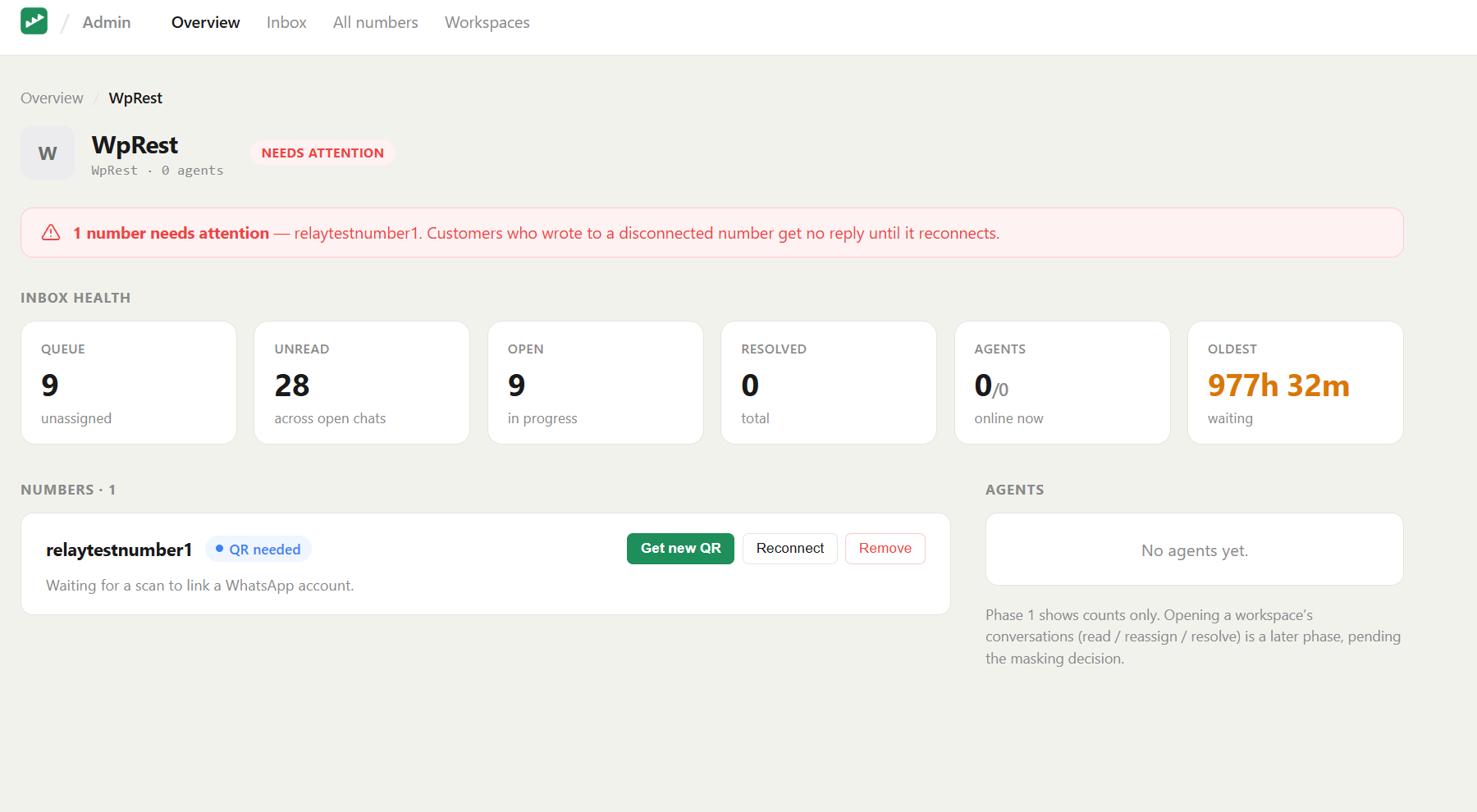
If a number is disconnected or banned, a red banner names it — customers who wrote to that number get no reply until it reconnects.
All numbers
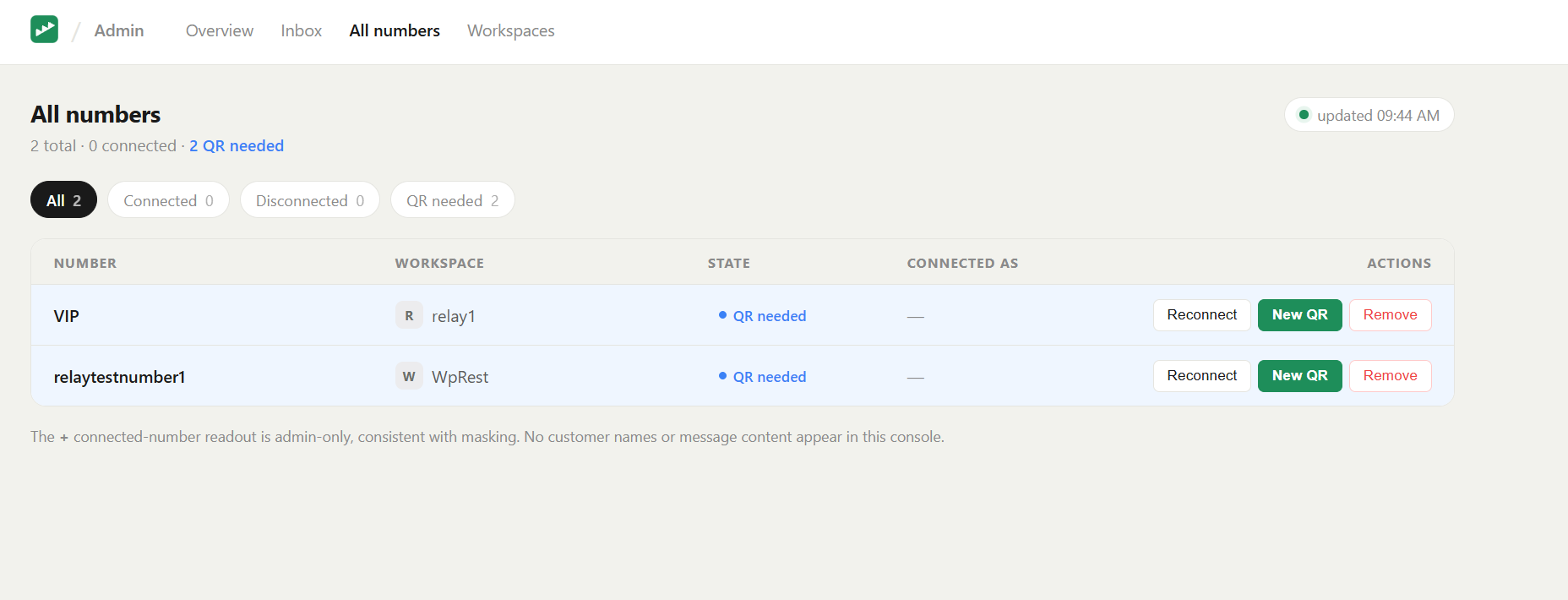
The All numbers tab lists every number across every workspace in one table — Number, Workspace, State, Connected as, and Actions — with filter chips (All, Connected, Disconnected, QR needed) and the same Reconnect / New QR / Remove actions on each row. Rows that need attention are highlighted.
Reconnecting a number
New QR (or Get new QR) opens a Scan to connect dialog with a fresh code. On the phone: WhatsApp → Linked devices → Link a device, then scan it. The dialog shows Connected ✓ once it pairs. Reconnect re-establishes an existing pairing without a scan. Remove disconnects a number and wipes its WhatsApp session — its inbox history is kept, and any customers pinned to it are unpinned.
Note: Everything here is masking-safe. The console shows connection state, counts, and — admin-only — the linked WhatsApp number, but never customer names or message content. See Masking & privacy.
Next steps
- Admin inbox — read and reply to any workspace's conversations.
- Operations — backup, restore, health checks, updates.