Replying to customers
Reply to a conversation, resolve it, and use private notes.
Overview
Handling a conversation is a simple loop: open a waiting chat, reply until the matter is sorted, then resolve it. Your first reply takes the conversation — there's no separate Accept step. Replies always go back out from the number the customer originally messaged, so the conversation stays on one thread for them.
Reply to a customer
-
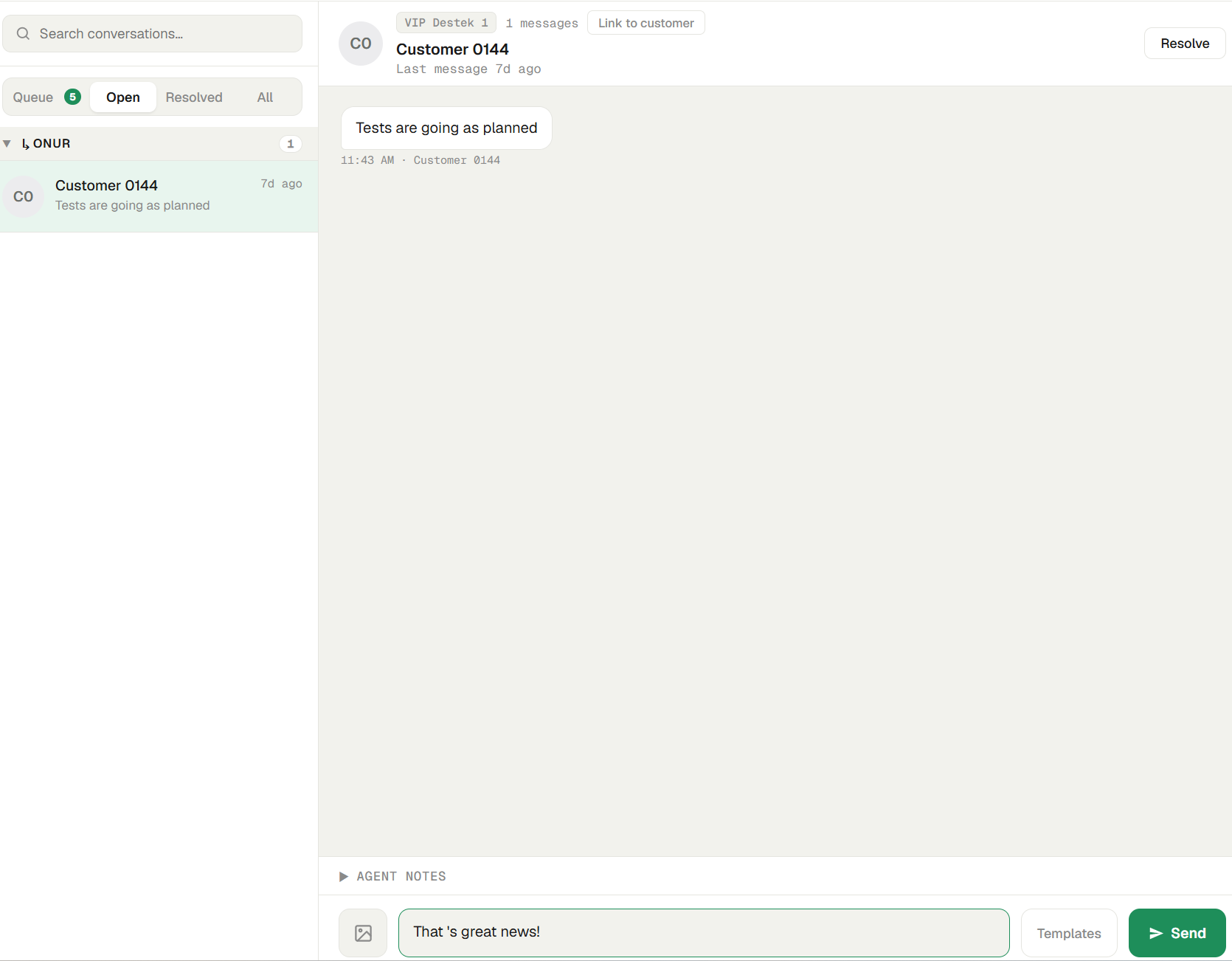
Open a conversation. Click one in the list. The messages appear on the right.
-
Type your reply. Use the Reply to customer… box at the bottom and click Send (or press Enter). Your message is delivered on WhatsApp and appears in the thread. If the conversation was still waiting in the shared pool, your first reply takes it — it's now assigned to you, with no separate Accept step. (If another agent replied a moment before you, Relay tells you it was just picked up and keeps your draft.)
-
Resolve when done. Click Resolve to close the conversation. It moves under the N resolved row. If the customer writes again it re-opens automatically; you can also click Re-open yourself.
Note: Replies leave from the number the customer wrote to — never a different one. If that number is offline, sending is blocked until it reconnects, rather than going out from another number. See Connect a number.
Private notes
Each conversation has a Notes area (Private notes…). Notes are for your team only — the customer never sees them. Use them to leave context for whoever picks the chat up next. Notes save automatically.
Assigning and taking over
- Assign / Unassign — hand a conversation to a specific agent, or release it back to the shared pool. (Reassigning to another agent needs the Reassign permission.)
- Agents with Monitor can view other agents' chats; with Take over they can reply inside them; with Override they can act on chats owned by others. Most agents don't need these — see Agents & permissions.
Next steps
- Send an image or view media.
- Insert a quick-reply template.
- Link the chat to a customer record to replace the alias with a real name.