Templates
Save canned responses your team can insert while replying.
Overview
Quick-reply templates are saved messages — greetings, common answers, closing lines — that agents drop into a reply in one click instead of retyping. The Admin (or an agent with the Manage templates permission) creates and edits them; any agent can insert them.
Create a template
-
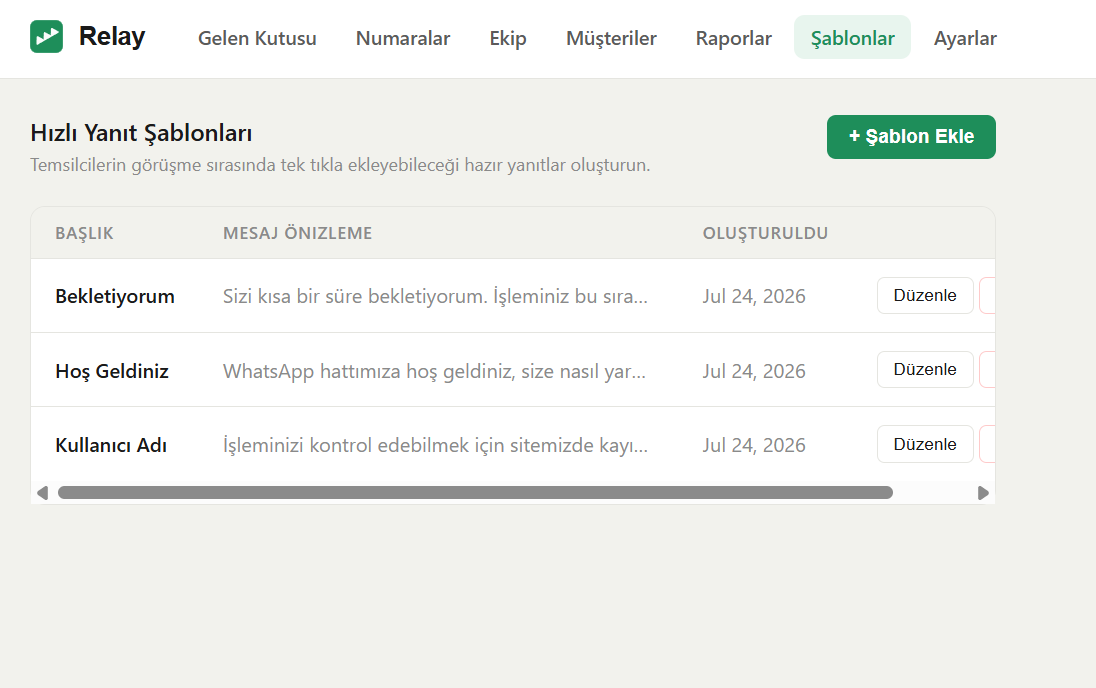
Open Templates. In the top navigation, click Templates.
-
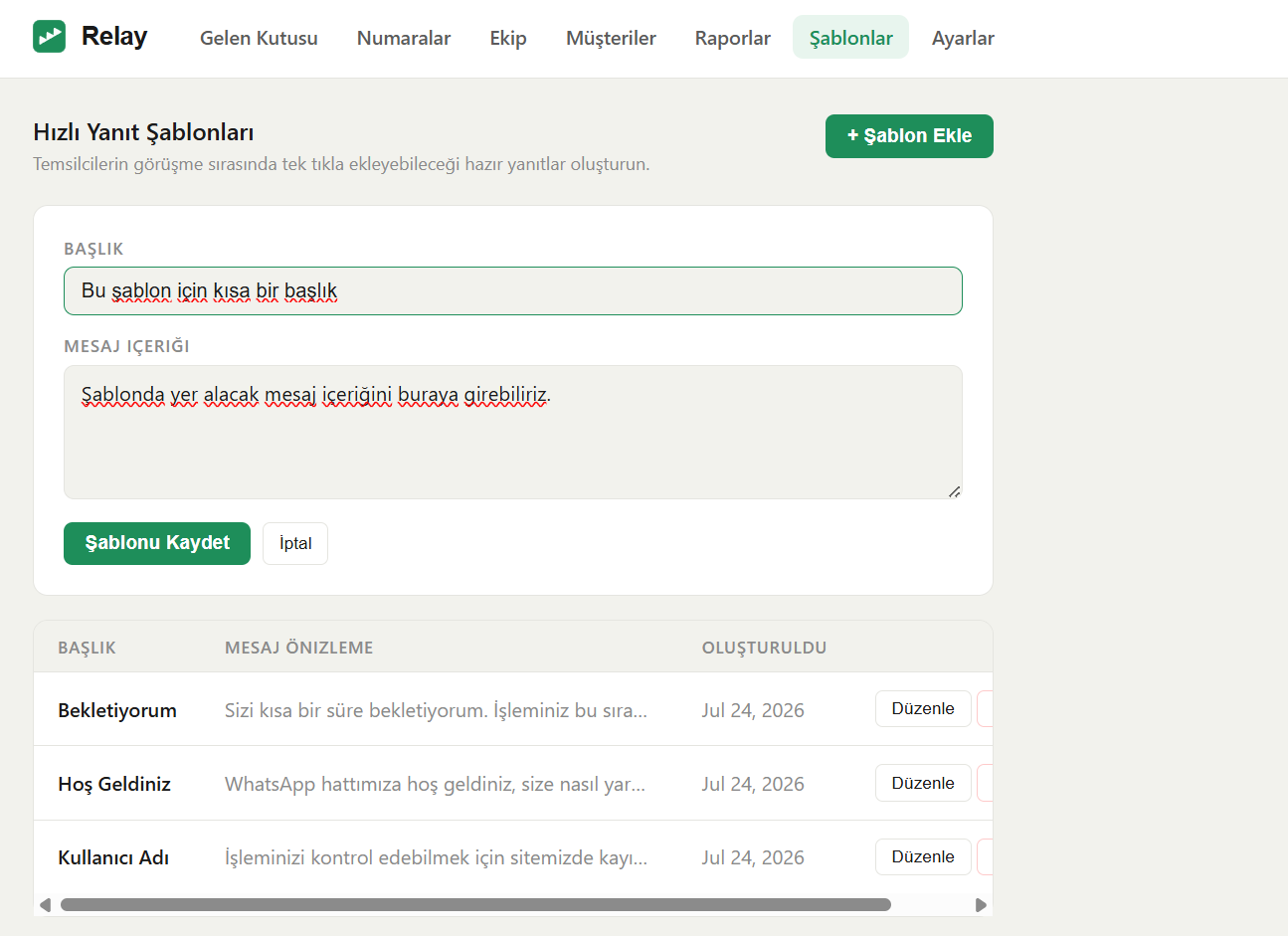
Add one. Click + Add Template, then fill in:
- Title — a short name you'll recognise in the list (e.g.
Greeting). - Message body — the text that gets inserted.
Click Save Template.
Edit or delete a template
On the Templates page, each row has Edit and Delete. Click Edit, change the title or body, and click Update Template. Deleting a template only removes the saved snippet — it doesn't affect messages already sent.
Note: Creating, editing, and deleting templates needs the Manage templates permission (the Admin always has it). Agents without it can still insert templates while replying.
Insert a template while replying
In an open conversation, open the templates list from the reply area and choose one — its text drops straight into the Reply to customer… box, where you can tweak it before sending.
Next steps
- Reply to customers.
- Agents & permissions — grant Manage templates.