Inbox overview
How the conversation list and the conversation lifecycle work.
Overview
The Inbox is where your team handles WhatsApp (and Telegram) conversations together. Incoming messages land in one shared list that any agent can pick from: replying to a waiting conversation takes it, and when you're done you resolve it. New, in-progress and resolved conversations all live in that one list on the left, with the ones that need an answer at the top; selecting a conversation opens it on the right.
Reading the list
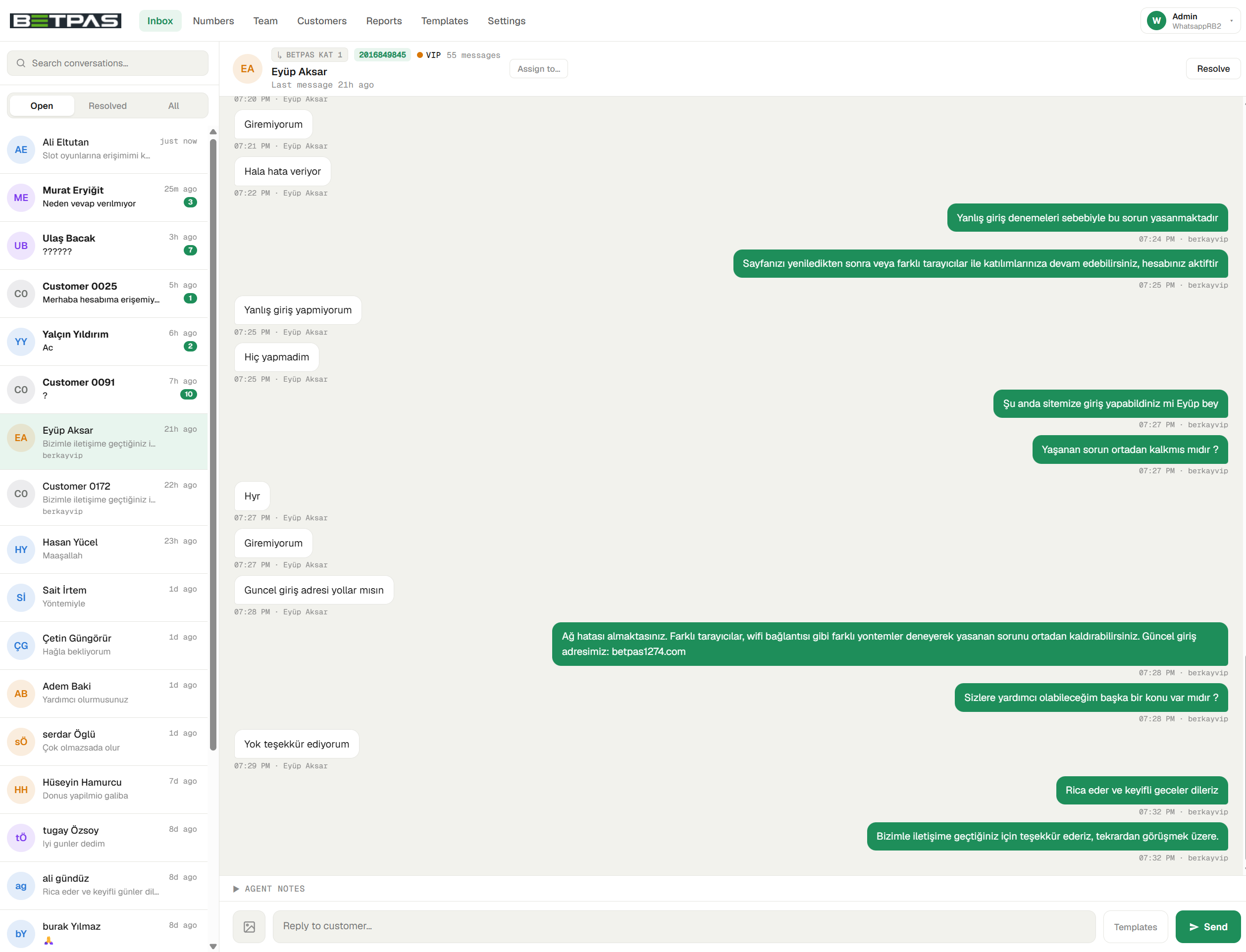
The line above the list sums it up: N waiting · M open. Waiting means the customer is waiting for an answer — they wrote last, or there are unread messages. Open is every conversation that isn't resolved yet.
The list (or each number's group, see below) is ordered so the work comes first:
- Waiting, not taken yet — new conversations, and ones returned to the pool while the customer waits.
- Waiting, already taken — the customer wrote again to a conversation an agent holds.
- Everything else that's open — you answered last. Muted conversations sit at the bottom.
- Resolved — folded away under a ▸ N resolved row. Click it to show or hide them; Relay remembers your choice in that browser.
Within each part, the newest conversation comes first. A waiting conversation shows its time in amber, with a dot, so it stands out.
Each conversation shows the customer's directory name — or the masked alias (e.g. Customer 0007) if they aren't linked to the directory — a preview of the last message, the time and the number of unread messages. Where it helps, a second line names who is handling it (⚑ Elif): Admins see this on every taken conversation, agents on the ones a colleague handles. You'll also see a Returned badge (below), a TG badge on Telegram conversations, and 🔇 on muted ones.
Grouping by number
When the workspace has more than one WhatsApp number, or the list holds Telegram conversations, the list is grouped by the number the customer wrote to (for a customer pinned to a number, by that number). Each group header shows the number's label and how many open conversations it has; click a header to fold the group away.
Groups are colour-coded — shades of green for WhatsApp numbers, blue for Telegram accounts — with a coloured stripe down the whole group, so you can see at a glance where a chat came from. The group with the newest activity comes first (a muted conversation never lifts its group), and colours stay put while you work: each number keeps its own colour. Replies always go out from the number the customer wrote to (or their pinned number).
Agents only ever see a number's label, never its phone number; only an Admin can see the actual number, on the Numbers page (Connected as +90…). While the list is grouped, conversations of a number that has been removed stay listed under a Previous number header (see Connect a number).
Whose conversations you see
- Admins see every conversation in their workspace.
- Agents see every conversation nobody has taken yet, plus their own conversations, open or resolved.
- Agents allowed to see all chats (the See all chats permission) get an Everyone's chats switch on the summary line. It's on by default: you see every conversation, with your own listed first among the ones already taken. Switch it off to see only the conversations nobody has taken yet and your own. Relay remembers the setting in that browser.
Searching
Type in the search box and the list narrows at once to matching conversations — by name, masked alias or customer code. After a short pause Relay also searches older conversations, and any it finds are added with an Older badge. While you search, every group and every resolved section opens so nothing stays hidden, and the summary line shows N matches. Clear the box to go back to the normal list.
Older resolved conversations
The list holds your most recent resolved conversations. When there are more, a Load older resolved conversations button at the bottom of the list fetches the next batch. Search finds older conversations too, so you rarely need to page back by hand.
Clearing waiting conversations in bulk
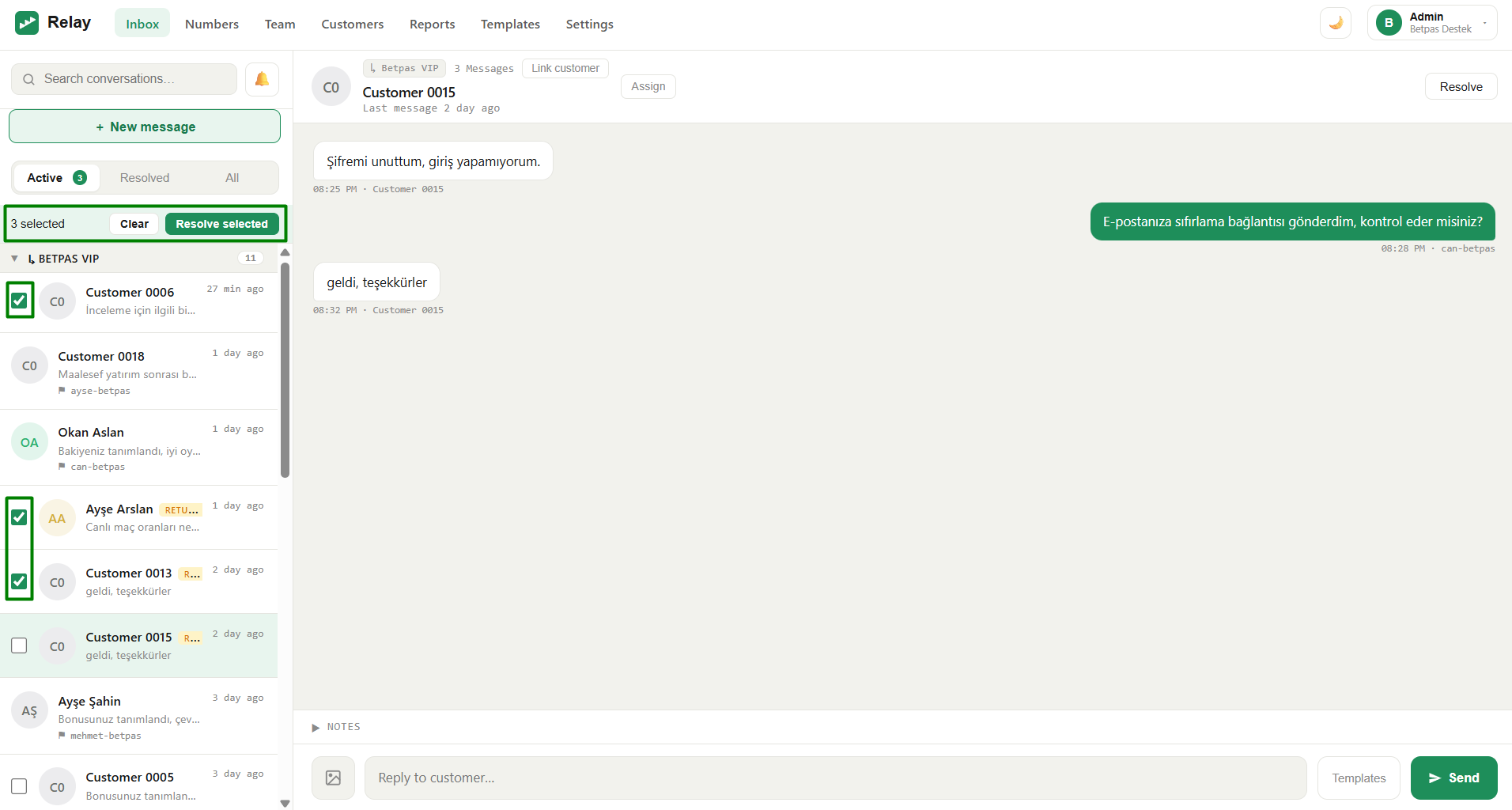
Sometimes the list fills with one-word or repeat messages that don't need a reply. Tick the checkbox on several waiting conversations nobody has taken yet — a bar shows how many are selected — then click Resolve selected to close them all in one action (or Clear to drop the selection). Nothing is lost: if one of those customers writes again, their conversation comes straight back to the top as waiting.
The conversation lifecycle
new message ─────────────────────►  waiting, not taken (top of the list)
an agent replies ────────────────►  taken by that agent
agent clicks Resolve ────────────►  under the "N resolved" row
customer writes again ───────────►  waiting again, not taken
agent clicks Re-open ────────────►  back in the pool, not taken
- A customer messages you. The conversation appears at the top of the list (or of its number's group) as waiting and not taken.
- An agent replies. The first reply takes the conversation — it's now assigned to that agent, with no separate Accept step. If two agents reply at the same moment, only the first wins; the other is told it was just picked up and keeps their draft.
- The agent resolves it. When it's handled, Resolve closes the chat and moves it under the N resolved row.
- It can re-open. If the customer writes again, the conversation is waiting again, for whoever is free. An agent can also click Re-open: the conversation goes back to the pool, not taken — it counts as waiting only if the customer wrote last.
The "Returned" badge
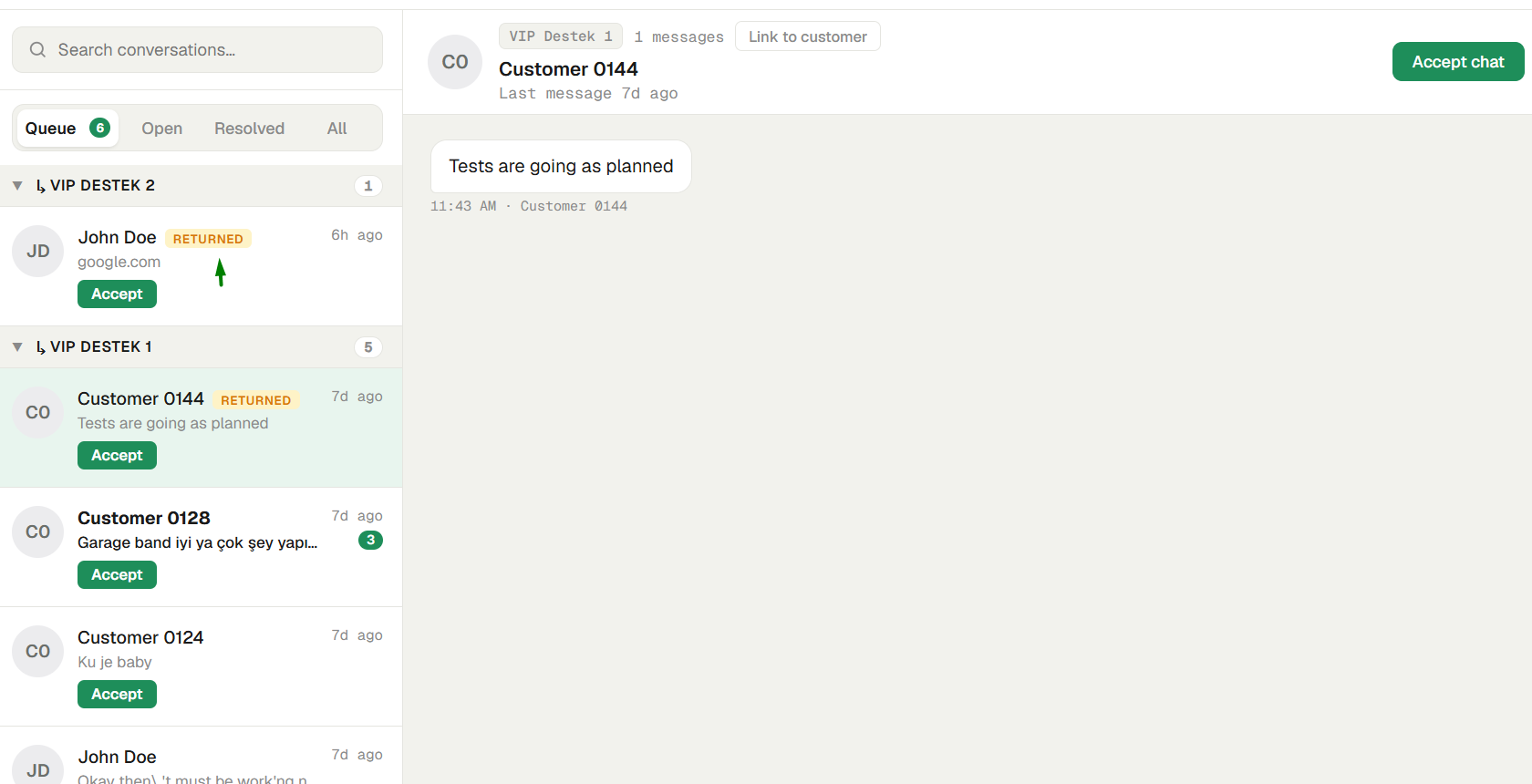
Relay makes sure no message is left unseen. If a conversation is assigned but goes unanswered too long, or its agent goes offline or is removed, Relay automatically returns it to the waiting pool with an amber Returned badge so someone else picks it up. The Admin sets how long "too long" is in Settings.
Muting a customer
You can mute a customer who keeps sending irrelevant or unwanted messages. Open the conversation and click Mute at the top (any agent can). A muted conversation:
- stays in the list but drops below the other open conversations, faded. New messages from that customer play no sound and show no notification, don't count as waiting and don't add to the (n) in the browser-tab title — so they never crowd your list. The unread number on the row itself still counts up, so you can see something arrived.
- carries a 🔇 icon next to the name. Muting doesn't delete anything and doesn't block the customer on WhatsApp: they can keep writing, and their messages are still saved.
Open the conversation and click Unmute to bring it back to normal.
Note: Muting applies to the whole team's inbox, and only inside Relay — the customer notices nothing.
New-message alerts
So a new message is never missed while you're working elsewhere, Relay signals arrivals in a chat you're not currently viewing:
- A short sound plays, and — when Relay's window is in the background — a desktop notification appears. It shows the same name as the list (the directory name, or a masked alias such as Customer 0007) and a short preview of the message — never a phone number.
- The browser-tab title carries a (n) prefix with the number of unread messages in the open conversations you can see (muted ones excluded), so you can tell there's something new even from another tab or window.
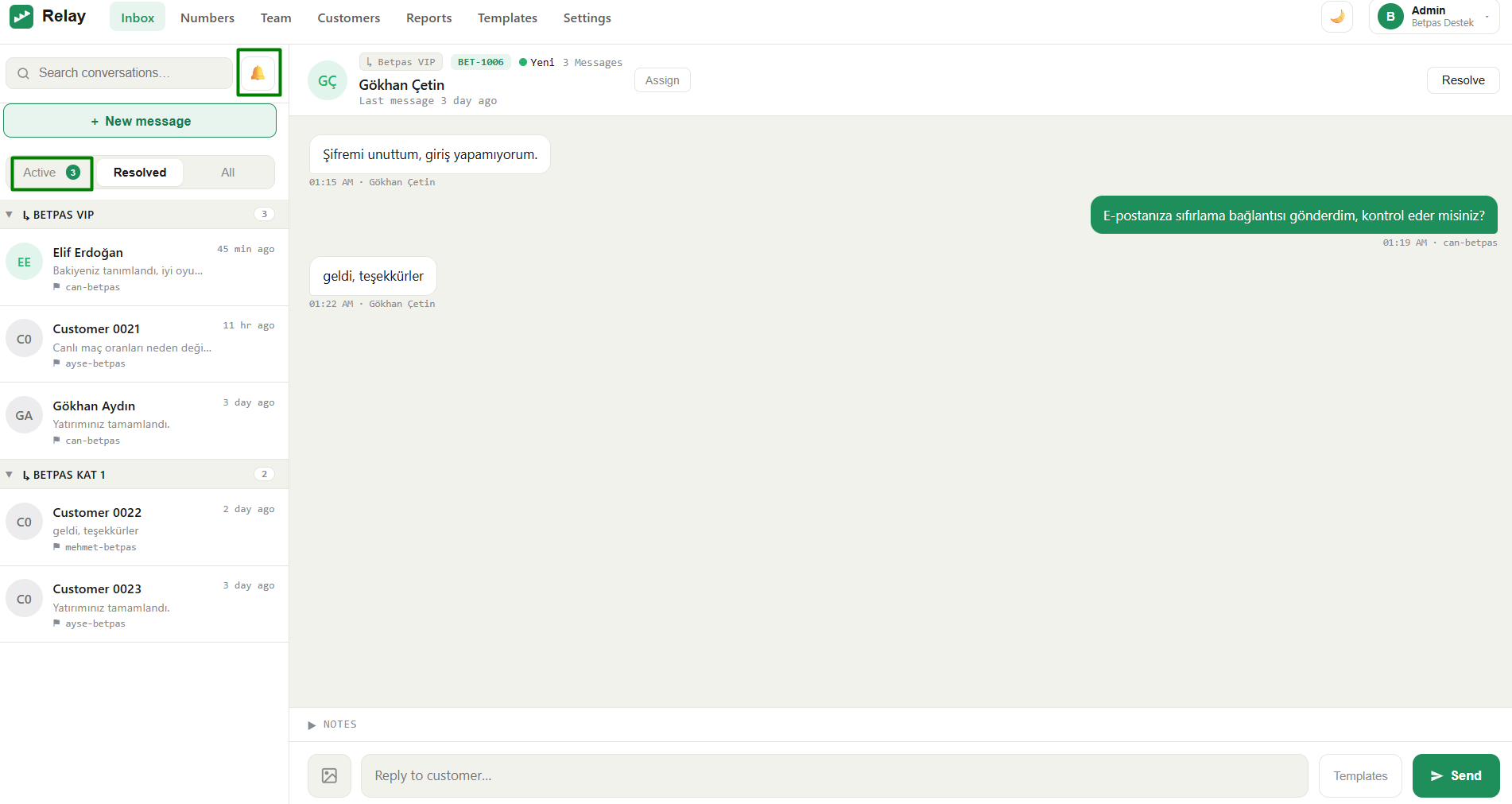
A bell button in the search bar mutes or un-mutes this (Sound & alerts on — click to mute / Alerts muted — click to enable); your choice is remembered in that browser. The first time you enable desktop notifications, your browser will ask permission.
Light & dark theme
A sun / moon toggle in the top bar switches the whole interface between a light and a dark colour scheme (Toggle light / dark). It's purely visual — nothing moves or behaves differently — and your choice is remembered in that browser and applied before the page paints, so there's no flash on load. Light is the default.
When a new version is ready
After the Super-admin (whoever runs your Relay server) deploys an update, open tabs show a small banner — A new version is available. with a Refresh button — so you're never left on an old copy of the page. It never interrupts a reply you're typing; a background tab refreshes itself when you return to it, as long as nothing is half-typed. Click Refresh (or just reload) to pick it up.
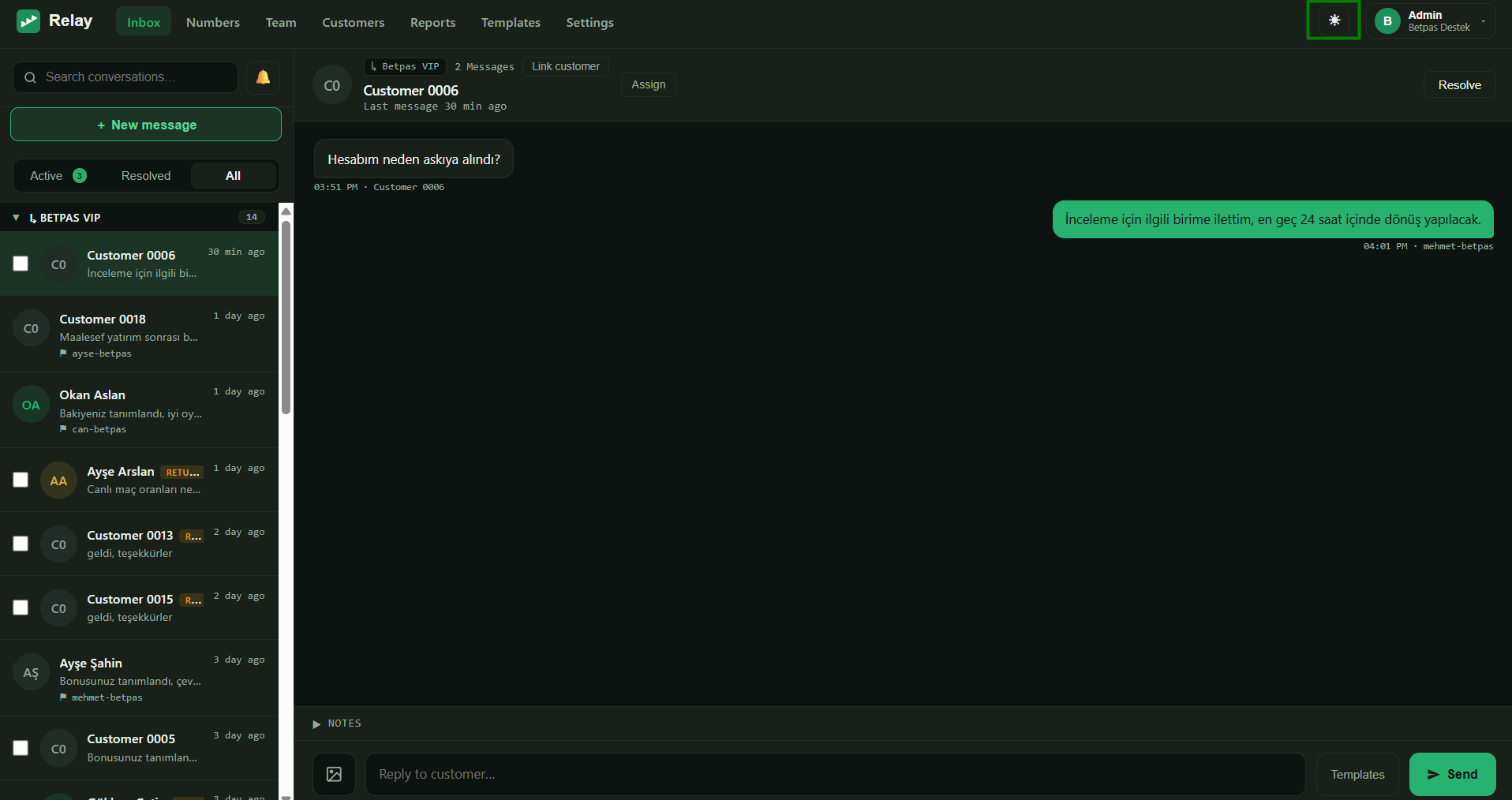
Seeing Active / Resolved / All tabs instead? The Super-admin (whoever runs your Relay server) has switched Relay back to the classic tabbed inbox for every workspace (see Troubleshooting). Replying, resolving, muting, alerts and the conversation lifecycle work the same; the list itself is the older tabbed layout.
Next steps
- Reply to a customer — the day-to-day flow.
- Link a chat to a customer record to show a real name.
- Masking & privacy — what agents can and can't see.