Reports
Filter, review, and export your conversation history.
Overview
The Reports page is your record of every conversation — who handled it, how many messages it took, when it started and ended, and its topic. Filter by date, agent, or status, read any conversation's full transcript, and export the results to Excel.
Run a report
-
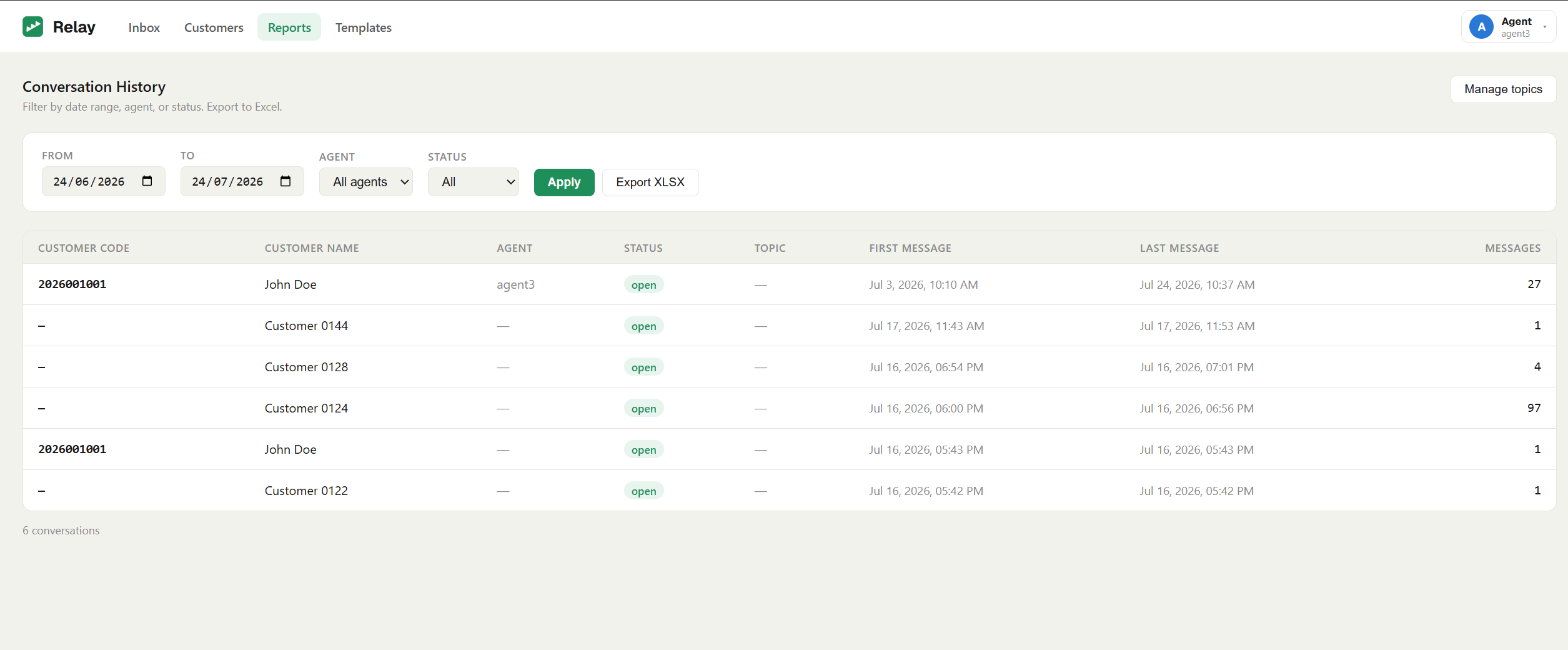
Open Reports. In the top navigation, click Reports.
-
Set your filters.
- From / To — the date range.
- Agent — a specific agent, or All agents.
-
Status — Open, Resolved, or All.
-
Apply. Click Apply to load the matching conversations. Each row shows the customer, the agent, status, message count, and first/last message times.
Read a transcript
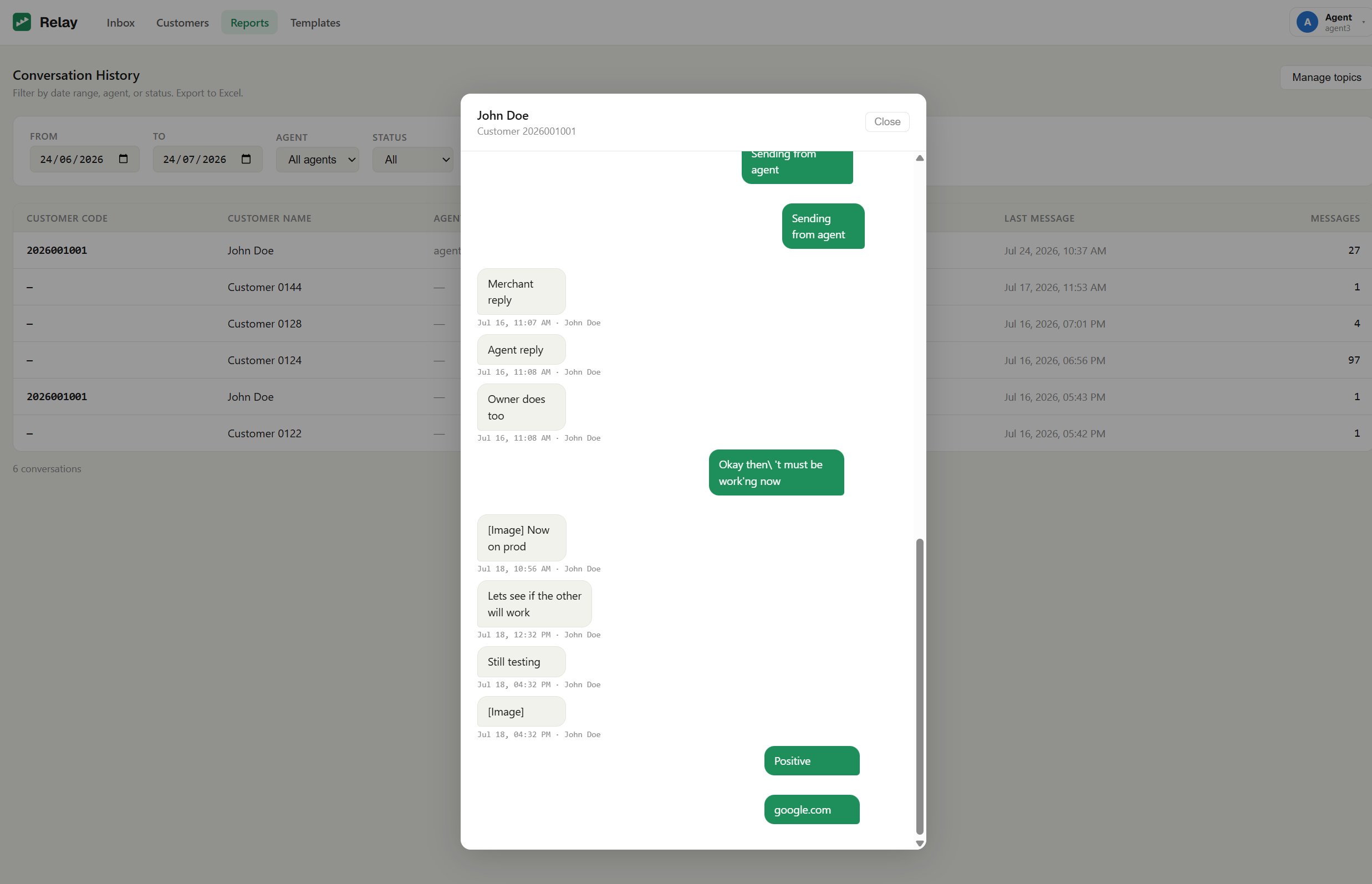
Click a conversation in the results to open its Conversation Transcript — the full
message history for that conversation, in order.
Export to Excel
Click Export XLSX to download the current, filtered results as an Excel file — useful for sharing or deeper analysis.
Note: Opening Reports needs the View reports permission; downloading needs Export reports. The Admin has both. See Agents & permissions.
Topics in reports
If you've set up topics, each conversation carries its topic tag here, so you can see how your volume breaks down by subject.
Next steps
- Topics & statuses — set up the tags that appear in reports.
- Agents & permissions — grant reporting access.