Telegram
Connect a Telegram Business account so customers who message it land in the same inbox as your WhatsApp numbers.
Overview
Relay connects to a Telegram Business account through a bot you create. Customers write to your Telegram account exactly as they always have — they never see a bot, and they are never asked to start one. Their messages arrive in the shared queue alongside WhatsApp, and your replies go out from the real account.
Everything else works the way it already does: the same queue and conversation lifecycle,
the same masking (agents see a name or
Customer NNNN, never a Telegram id or @username), the same templates, topics, statuses
and reports.
You need two things: a Telegram account with Business features enabled, and manager access in Relay to set it up.
Read What Telegram allows before you roll this out to agents. Telegram restricts when a business account may send, and those rules shape how your team can work. They are Telegram's rules, not Relay settings, and nothing can work around them.
Step 1 — Create the bot (once per workspace)
-
In Telegram, open a chat with @BotFather and create a new bot. BotFather gives you a token that looks like
123456789:ABCdef.... -
In Relay, open Telegram in the top bar, paste the token, and click Save bot.
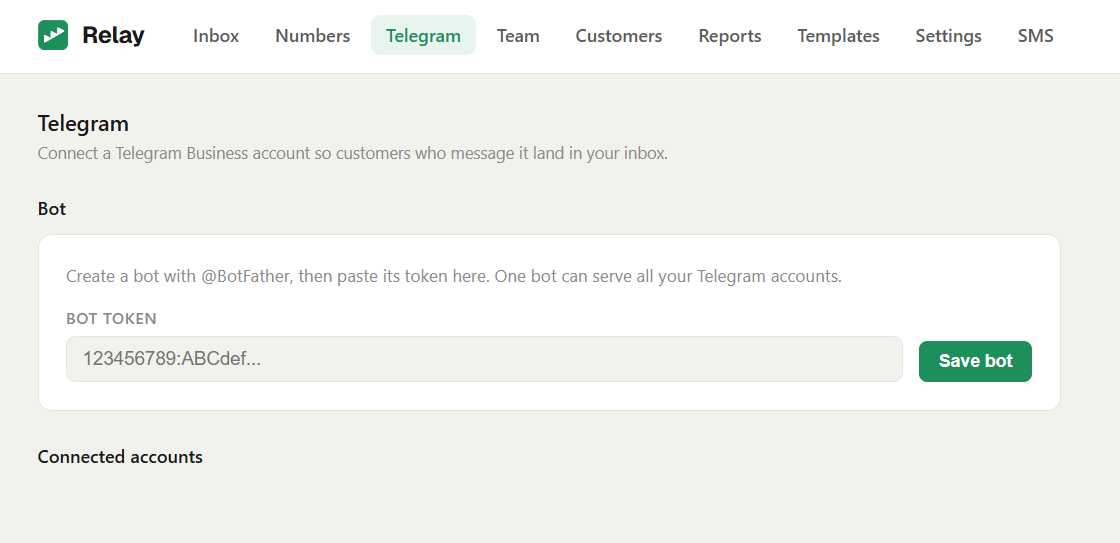
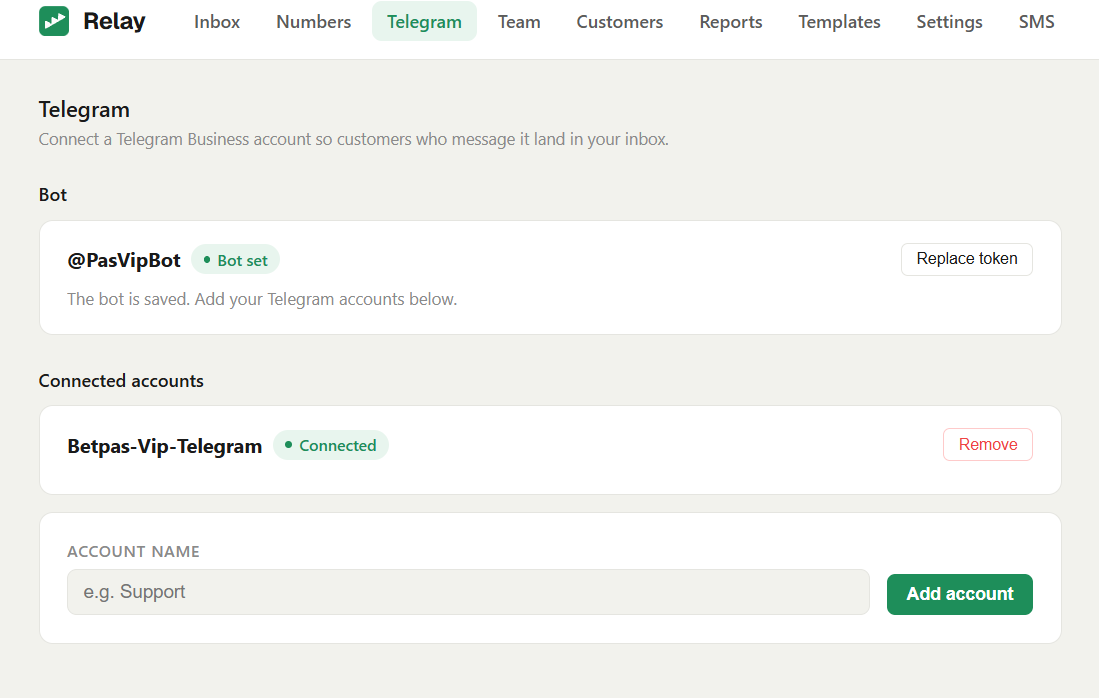
Relay checks the token with Telegram and stores it on the server only — it is never shown again, and never sent back to a browser. If you ever need to change it, use Replace token.
One bot serves every Telegram account in the workspace. You do not need a bot per account.
Step 2 — Connect a Telegram account
-
Under Account name, type a label for the account and click Add account. This label is what your agents will see as the group heading in the inbox, so name it the way your team thinks about that account.
-
The account appears as Pending, with the bot's username shown.
-
Now go to Telegram itself, on that account, and open Settings → Business → Chatbots. Add the bot shown in Relay, and allow it to reply to messages.
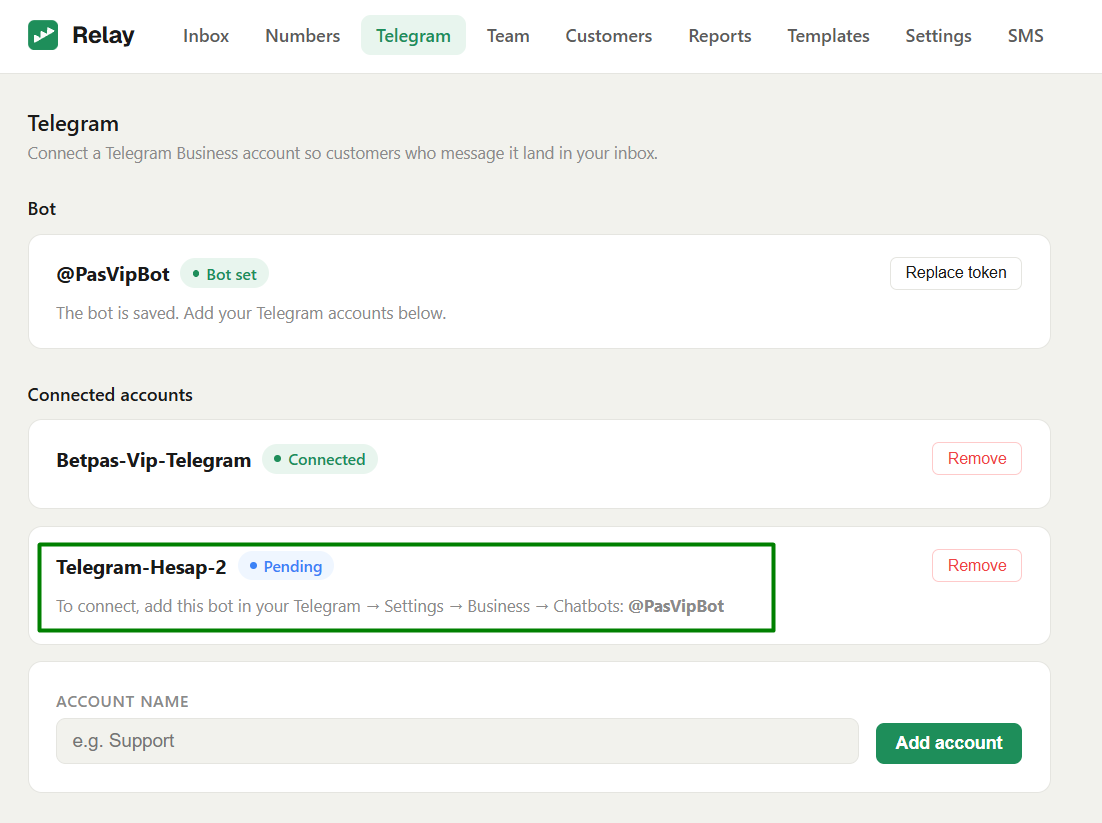
- Within a few seconds the badge changes to Connected. That account's messages now flow into the inbox.
Repeat for each Telegram account you want in the inbox.
If it stays Pending: the bot was added but not given permission to reply. Re-open Settings → Business → Chatbots and make sure the bot is switched on and allowed to reply. Removing and re-adding the bot creates a fresh connection.
Do not use Remove unless you can get back into that Telegram account. Re-connecting requires re-authorising the bot from inside Telegram, which needs access to the account itself.
How Telegram conversations appear
Telegram chats sit in the same list as WhatsApp, carrying a small TG badge and grouped under the account name you chose.
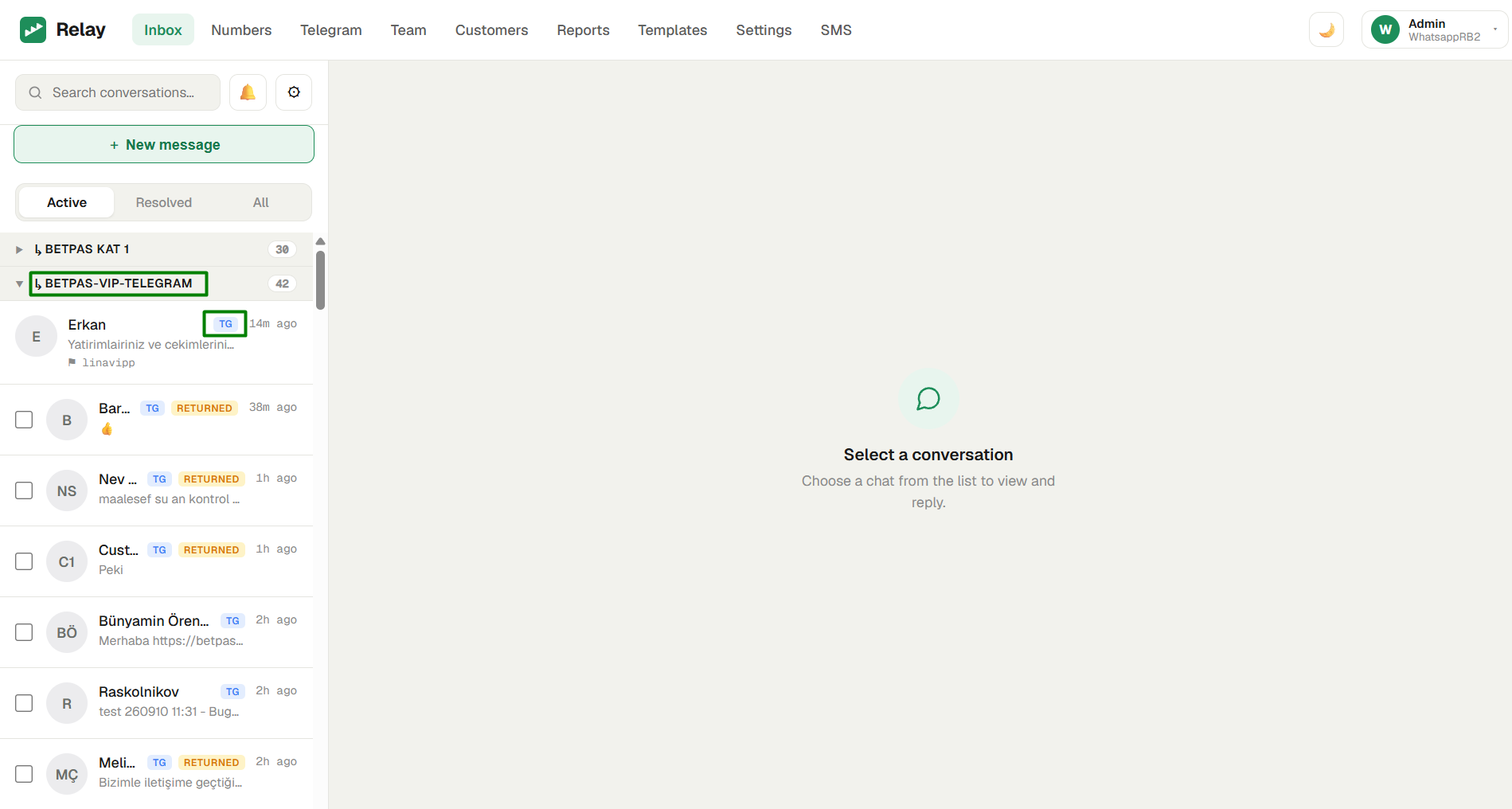
Accept, reply, resolve and re-open all behave exactly as they do on WhatsApp — see Replying to customers.
Names come from the customer's own Telegram profile, not from any name you have saved
for them in your own Telegram contacts. Your private contact labels are not visible to a
bot, so a customer you know as "VIP 100025246 Mehmet" appears under whatever name they set
for themselves — or as Customer NNNN if they have set none.
Start a chat with a Telegram customer
A manager, or an agent with the Start chat permission, can open a new thread with a Telegram customer. If the customer already has a conversation, the reply rules apply (see Agents & permissions).
- Click New message.
- Set Channel to Telegram.
- Search or pick a contact, type your message, and click Send.
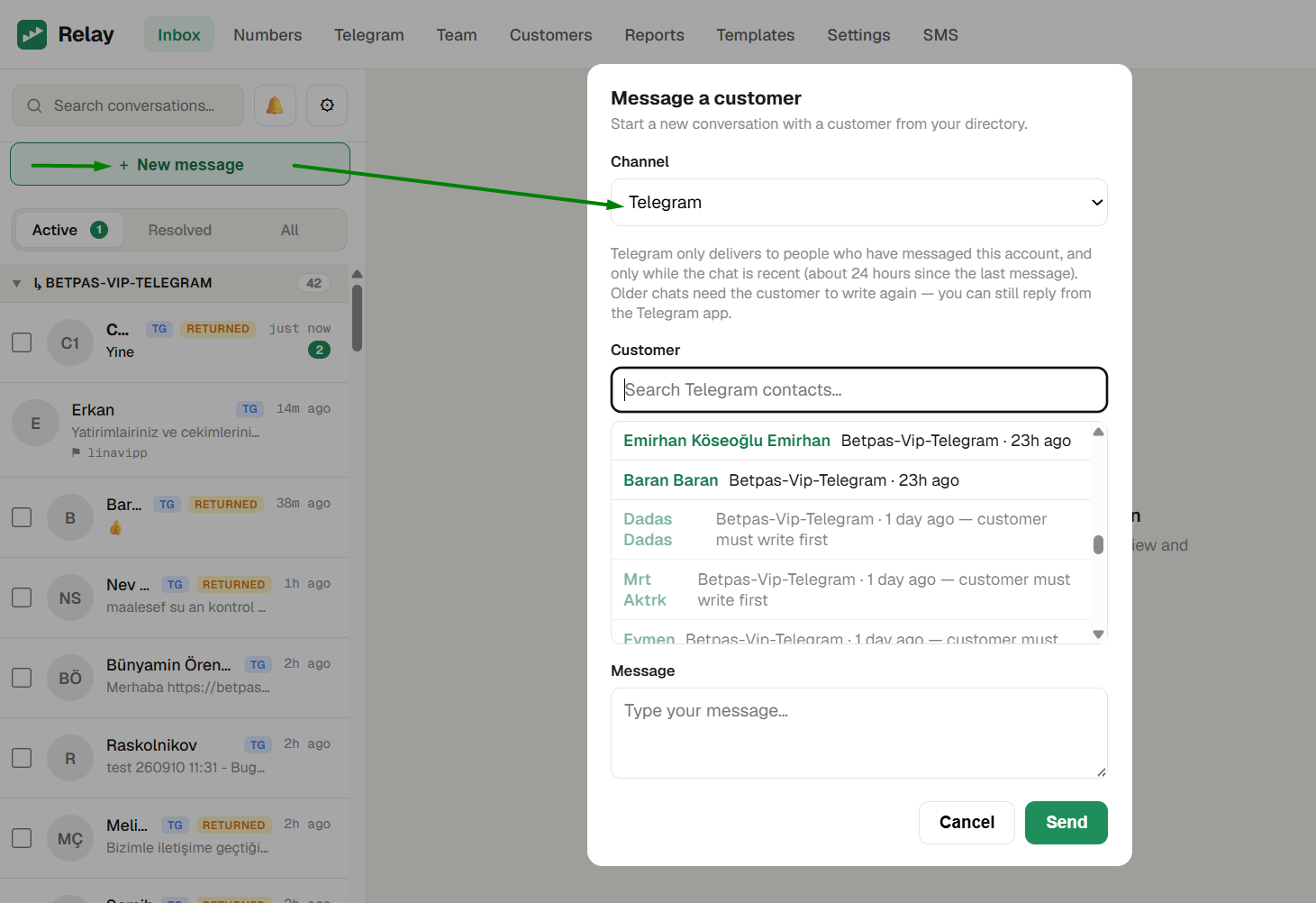
Each contact shows how recently they wrote. Contacts that have gone quiet are dimmed and marked "customer must write first" — Telegram will not deliver to them (see below). The list only ever contains people who have already messaged this account.
What Telegram allows
These are limits Telegram places on business accounts. They are not Relay settings, and no configuration removes them.
A chat must be recent — roughly 24 hours. Telegram only lets the account send into a conversation that has had a message in about the last day. Once a chat has been quiet longer than that, sending fails and Relay tells you so. This applies to ordinary replies as well as to starting a chat — a conversation nobody touches for more than a day cannot be answered from Relay until the customer writes again.
The way around it: the restriction applies to the connection, not to you. You can always open the chat in the Telegram app and reply there by hand. The conversation stays in Relay and continues normally once the customer replies.
You cannot message someone who has never written to you. Telegram provides no way to
look someone up by phone number or @username, and refuses to deliver to a person with no
existing chat. To reach somebody new, send them a link to your Telegram account through
another channel and let them write first.
One bot per workspace. A single bot serves all your connected accounts. Each additional Telegram account is another entry under Connected accounts, not another bot.
Images and files cannot be sent on Telegram yet. Inbound media from customers appears in the conversation as usual, but agent replies on Telegram are text-only. Image replies work on WhatsApp — see Media.
Practical advice
- Answer Telegram promptly. The 24-hour rule makes it far less forgiving than WhatsApp. A thread left over a long weekend may need the customer to write again.
- Watch the ages in the picker. They tell you at a glance who you can still reach.
- Keep one account per brand or team, named clearly — the label is the group heading your agents navigate by.
- Link Telegram contacts to customer records where it matters. Telegram gives us no phone number to match on, so linking is manual — but once linked, the customer's directory name and code show up in the inbox and are searchable. See Customer directory.